How to turn an image into pixel art
Choose an image, reduce the grid until the main shapes still read, then lower the palette. More contrast can separate forms before export.
Image to pixel art converter
Reduce a photo to a deliberate grid and compact palette, then export a crisp PNG.
Choose an image, reduce the grid until the main shapes still read, then lower the palette. More contrast can separate forms before export.
Try 24–48 pixels wide for a sprite-like result and 64–128 for more recognizable detail. The image's aspect ratio stays intact.
Nothing. Decoding, color reduction, preview, and PNG export happen inside this browser. JPEG, PNG and WebP work in current browsers; AVIF decoding depends on browser support.
Real browser output
The sample uses a 48 × 32 grid, a maximum of 16 opaque RGB colors, +8 contrast, and 8× export. The same settings always produce the same pixels.
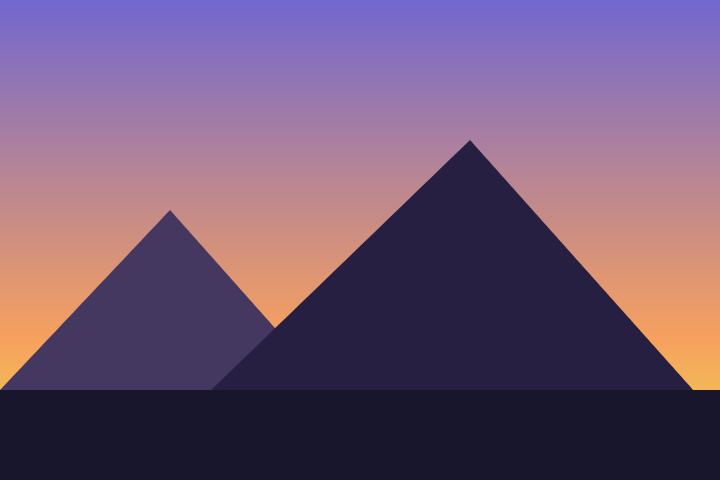
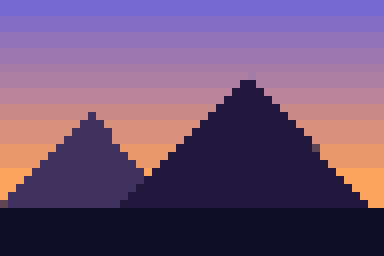
Pixel Press downsamples the source to your chosen grid, reduces its colors with deterministic median-cut quantization, then enlarges the result without smoothing.
Reviewed September 22, 2026. Output is capped by pixel count and dimensions to prevent excessive browser memory use.
Start with a 24–48 pixel grid and 8–16 colors. Lower the grid before lowering the palette so the silhouette remains recognizable.
Yes. Transparent and partially transparent pixels remain transparent. The palette limit applies to opaque RGB colors.
AVIF input depends on the browser's built-in decoder. If it fails, convert the source to PNG, JPEG, or WebP and try again.